What devices are NFC Compatible?
Learn which iOS and Android devices support NFC, and how you can use them to tap smart business cards like Connex. NFC (Near Field Communication) lets smartphones instantly exchange information like contact details, links, and profiles — just by tapping a smart card.
On this page, you’ll find out which devices are compatible, where the NFC reader is located, and what to do if NFC isn’t available. Whether you’re using an iPhone or Android, you’ll learn how to use your phone’s built-in technology to connect in seconds — no app required.
Any smartphone can scan your Connex smart business card, no matter the model.
Connex cards don’t connect to your phone. They connect to the phone of the person you’re sharing your info with.
Even if their phone isn’t NFC-compatible, they can still view your profile by scanning the QR code printed on your card.
On iPhones, the NFC reader is located at the top center of the device.
On Android phones, the position varies—typically around the center. For exact reader locations, brands like Samsung and Google provide details for each model.

For Android Phones
Enabling NFC:
Go to Settings > Connections > NFC and payment.
Turn on NFC (usually toggled as “Enable NFC”).
Some Android devices have the option to enable Android Beam (older phones), but it's no longer available in newer versions (Android 10 and above).
Enable Android Beam (for older versions):
If you are using an older Android device (Android 9 or below), you may need to enable Android Beam as well to share data via NFC.
Go to Settings > NFC > Android Beam and turn it on.
Tag Type Support:
For phones running Android 6.0 or above, they typically support all NFC types (including NTAG215). However, for specific use cases, check if the device can read/write to the particular tag type (e.g., NTAG215) by testing with an NFC tag reader app.
For iPhone:
NFC Settings (for newer iPhones like iPhone XS and later):
Starting with the iPhone XS and later models (iOS 12 and above), NFC is enabled automatically, and the phone can scan NFC tags without needing to unlock the device.
For earlier models (iPhone 7 through iPhone X), NFC can only be accessed when using a third-party NFC app or through the control center on the device (with NFC app enabled).
iPhone SE/7/7+/8,/8+/X/ XS/ XS Max - compatible
If you share with one of these devices, follow the steps below to activate their NFC reader:
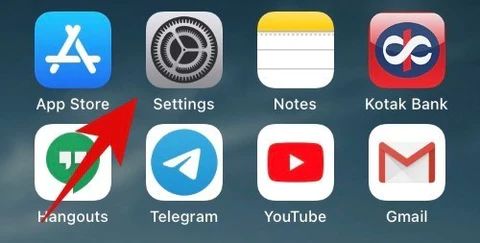
Step 1: Go to "Settings"
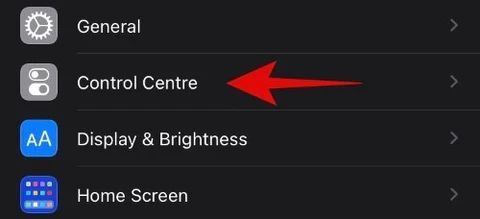
Step 2: Click on "Control center"
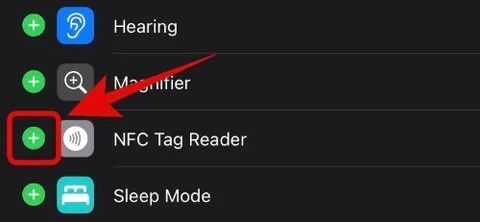
Step 3: Scroll down and find the "NFC tag reader" under the "More Controls" section.

Step 4: Once found, tap on the "+" to add it to your control centre.
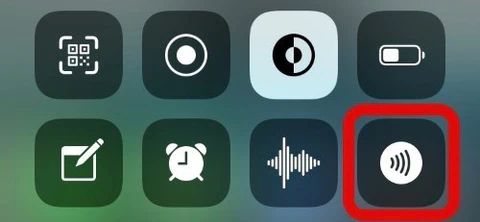
Step 5: Exit the Settings app. Launch the Control Centre and tap on the NFC tag reader icon.
Step 6: Simply hold your device up to your Connex product and it should automatically recognize it.
For Other Brands (e.g., Huawei, OnePlus, Xiaomi, etc.):
Enable NFC:
Huawei: Go to Settings > More > NFC and toggle the option on.
OnePlus: Go to Settings > Connected Devices > NFC.
Xiaomi: Go to Settings > Additional settings > NFC and turn it on.
Using NFC with Payment Apps:
For many phones, NFC may also be linked to payment features like Google Pay or Samsung Pay. If you want to scan tags for other uses (such as business cards or file sharing), make sure to enable NFC specifically for that feature.
App Permissions:
For certain apps to work with NFC (especially in custom Android skins like Xiaomi's MIUI or Huawei’s EMUI), you may need to grant specific permissions for those apps to interact with NFC.
Android Devices:
If your Android device is on the list but not working, make sure that NFC is activated in the phone's settings.
Manufacturer and Model | Has NFC Chip | Reads NFC |
Pixel 2, 2XL | Yes | Yes |
Pixel, Pixel XL | Yes | Yes |
Samsung | ||
Galaxy S9, S9+ and all future Galaxy models | Yes | Yes |
Galaxy S8, S8+ | Yes | Yes |
Galaxy S7, S7Edge | Yes | Yes |
Galaxy S6, S6 Edge, S6 Edge+ | Yes | Yes |
Galaxy S5, S4, SIII | Yes | Yes* |
Huawei | ||
P20, P20 Pro, P20 Lite and all future Huawei models | Yes | Yes |
P10, P10 Plus, P10 Lite | Yes | Yes |
Xiaomi | ||
Mi8, Mi6X, Mi6 and newer | Yes | Yes |
Mi5, Mi5s, Mi5 Plus | Yes | Yes |
Mi Mix, Mi Mix2, Mi Mix 2S | Yes | Yes |
OnePlus | ||
6, T5, 5, 3T, 3, One | Yes | Yes |
Motorola | ||
Moto Z3 Play and newer | Yes | Yes |
Moto E5/Plus, Moto E5 Play/Go | Yes* | Yes* |
Moto G6/Plus/Play | Yes* | Yes* |
Moto X4 | Yes | Yes |
Moto E4 Plus, Moto G5/G5S Plus | Yes* | Yes* |
LG | ||
Q8, Q7, G7 ThinQ and newer | Yes | Yes |
V35 ThinQ, Q Stylus, Q Stylo 4, V30 ThinQ | Yes | Yes |
G6, V30 | Yes | Yes |
Q6 | Yes* | Yes* |
K10, V20, G5 | Yes | Yes |
G3, Nexus 5X, V10, G4 | Yes | Yes |
Essential | ||
PH-1 | Yes | Yes |
Nokia | ||
6.1, 8 Sirocco, 7 Plus, 5.1 and newer | Yes | Yes |
8, 6, 5, 3 | Yes | Yes |
3.1 | Yes* | Yes* |
Sony | ||
Xperia XA2/Ultra/Plus and newer | Yes | Yes |
Xperia XZ2/Compact/Premium | Yes | Yes |
Xperia XA1/Ultra/Plus | Yes | Yes |
Xperia XZ1/Compact | Yes | Yes |
HTC | ||
U12+, U11 Eyes | Yes | Yes |
U11/Life/+ | Yes | Yes |
One (M8) | Yes* | Yes* |
One M9, Desire 10 Pro | Yes | Yes |
Note:
Devices marked with * in the "Reads NFC" column may have NFC support that is region-specific, meaning it might not be enabled or available in all areas.
Some older models may also need to have their NFC enabled manually in the phone's settings for it to work correctly.